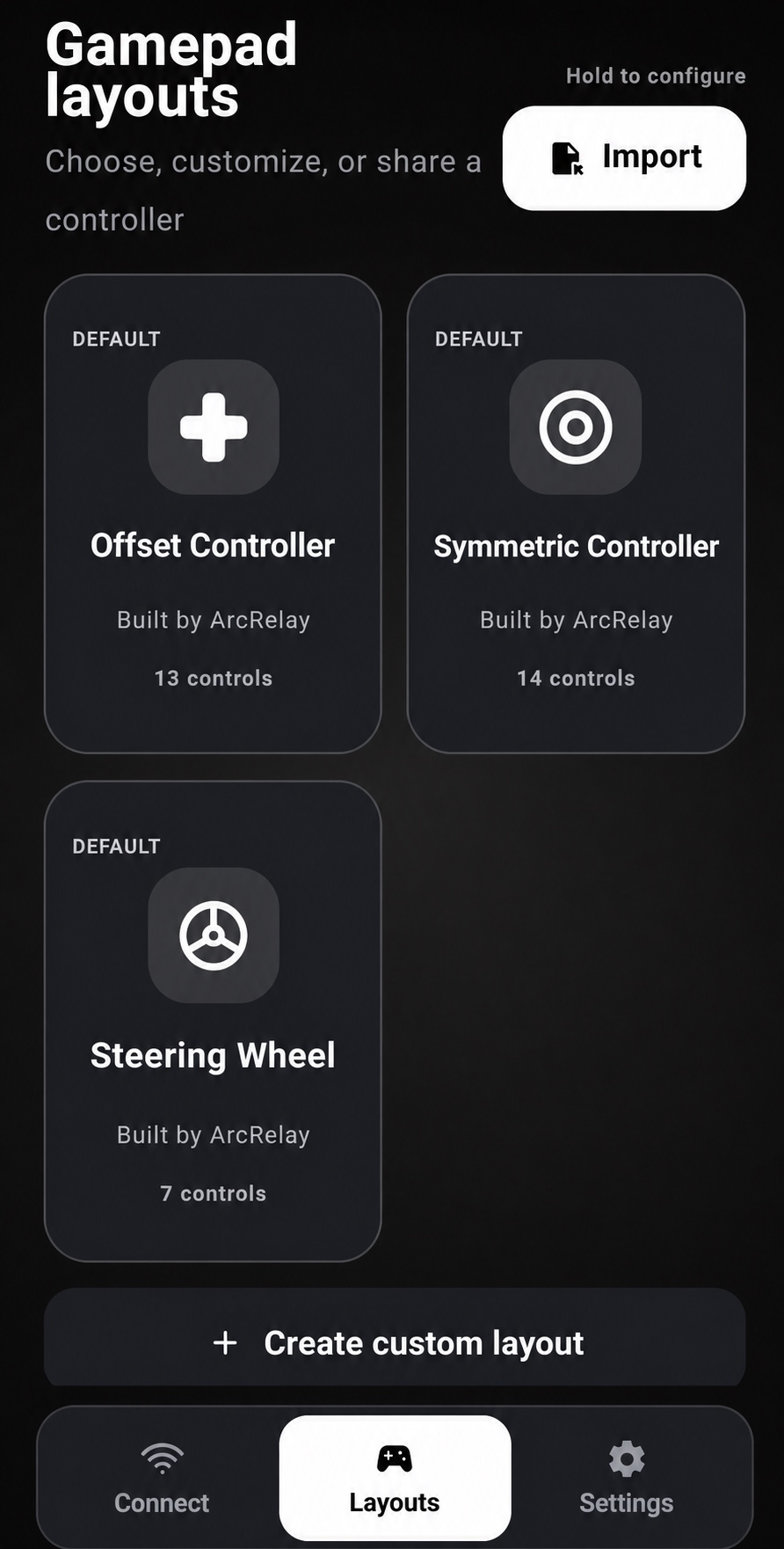
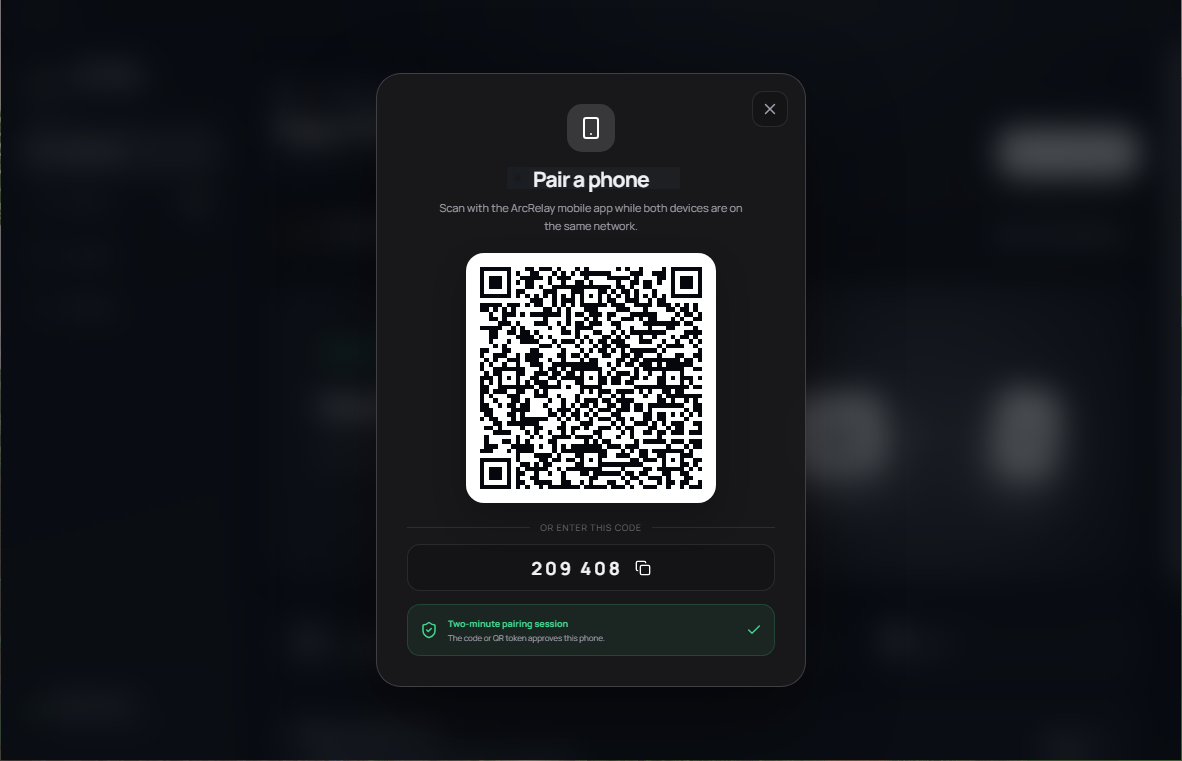
Fast local pairing
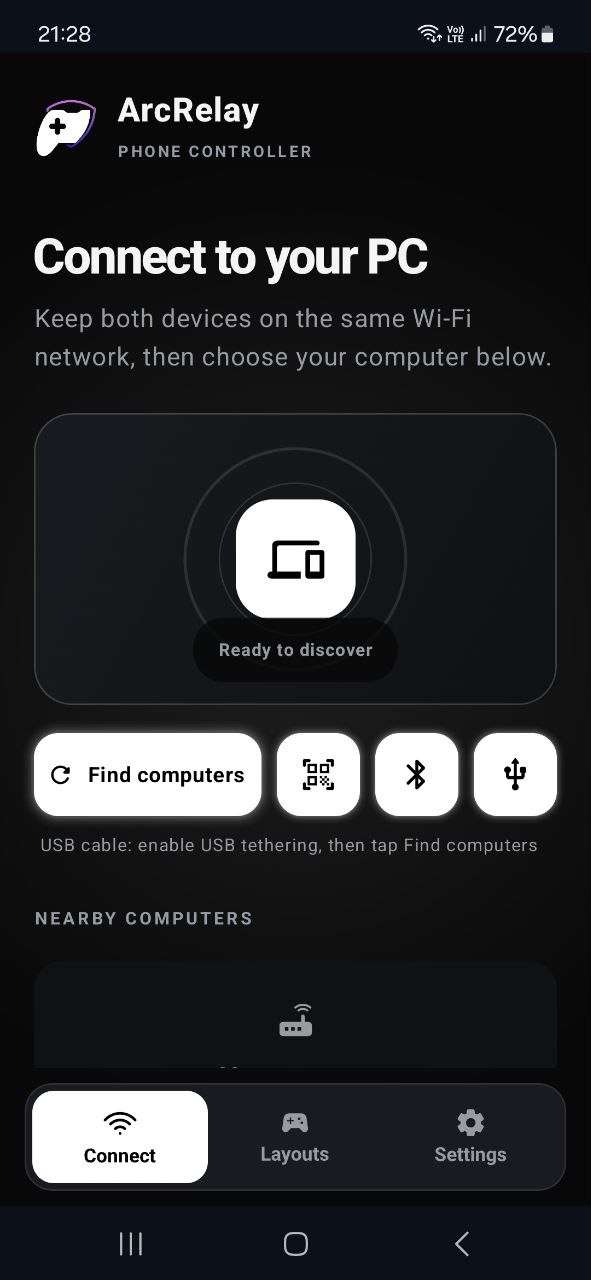
The companion finds receivers on the same network on its own. Confirm with a QR scan or a six-digit code and you're in.
ArcRelay is a local-first phone controller for Windows. Pair your Android device in seconds, build the layout you want, and send responsive gamepad, keyboard, mouse, sensor and media controls over a trusted connection.
Public beta · free while we polish it · no account required
Not in the stores yet — these are our official builds. See what changed
Explore layouts →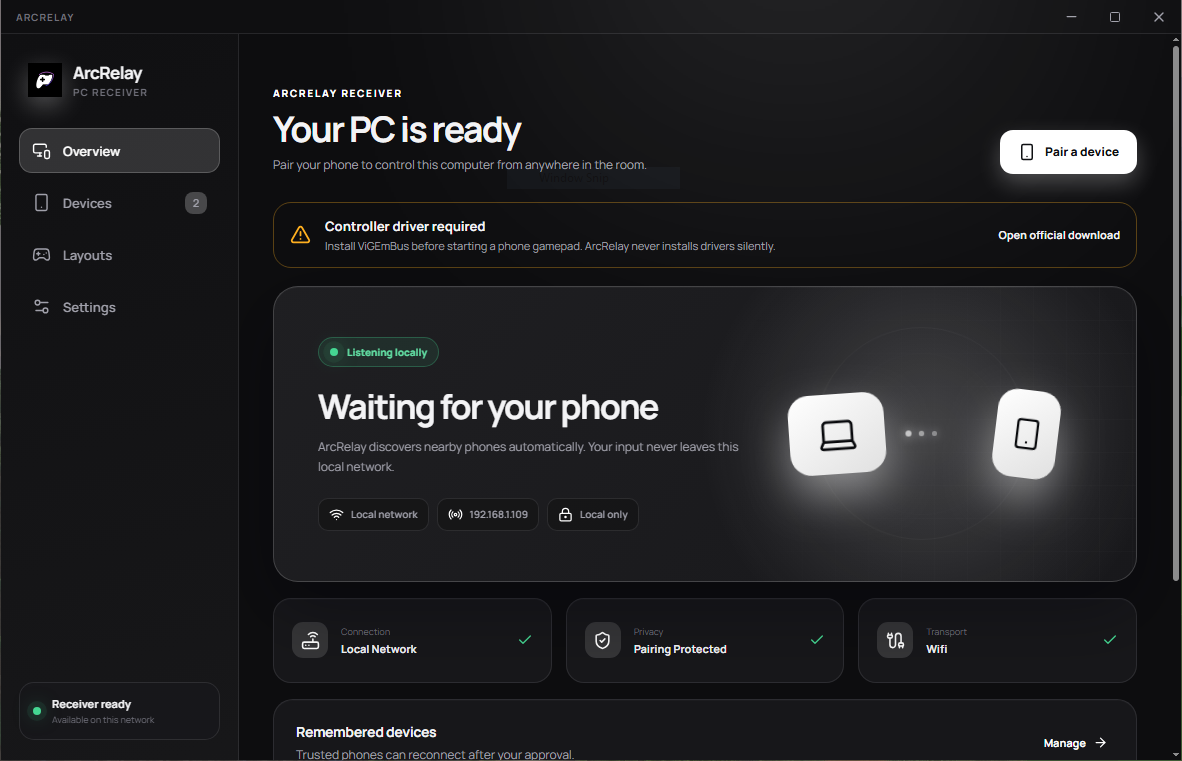
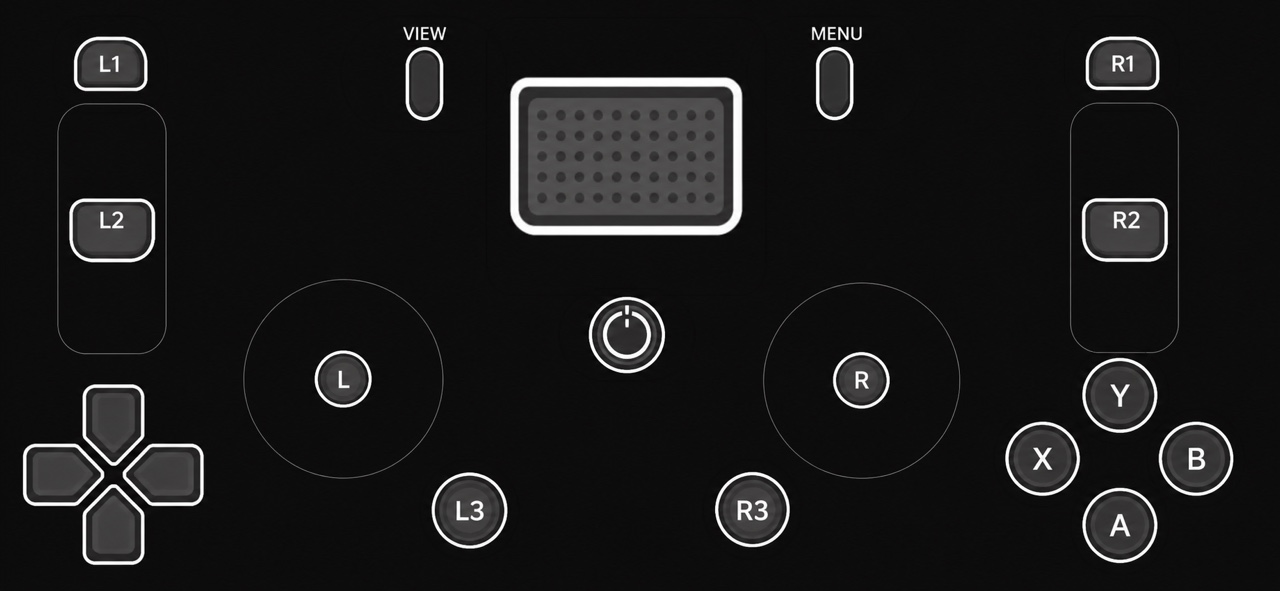
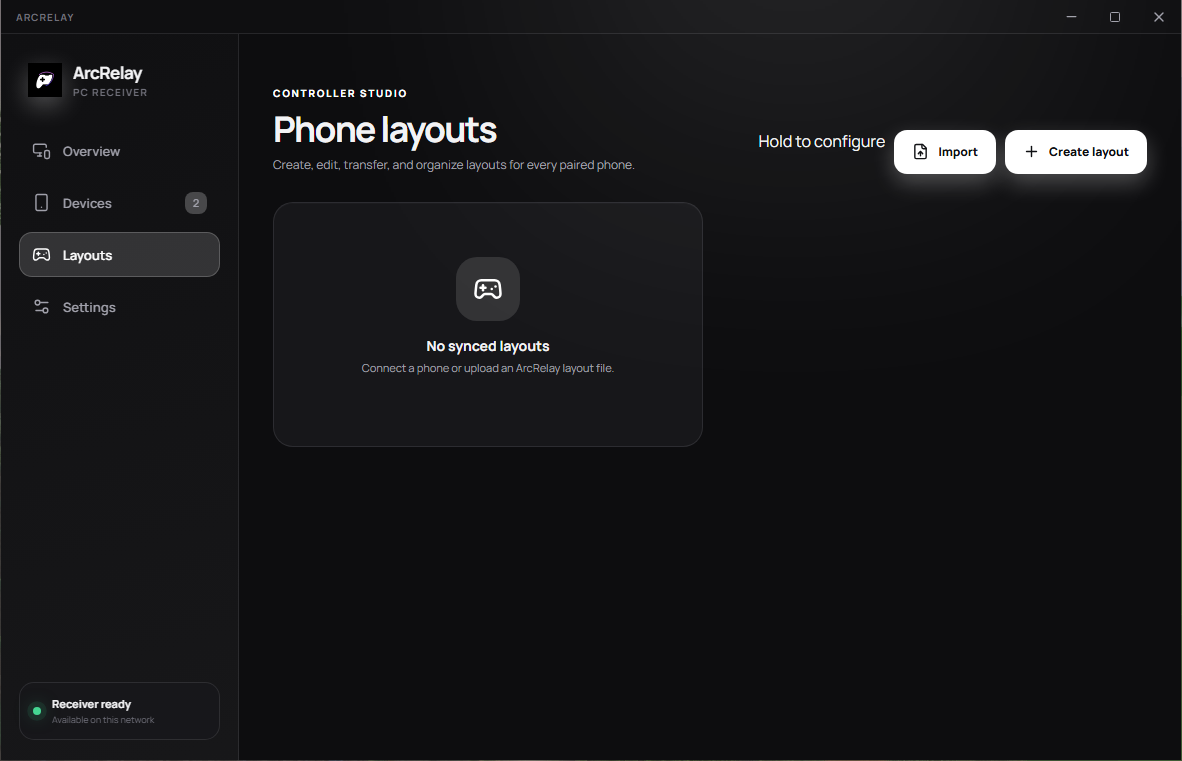
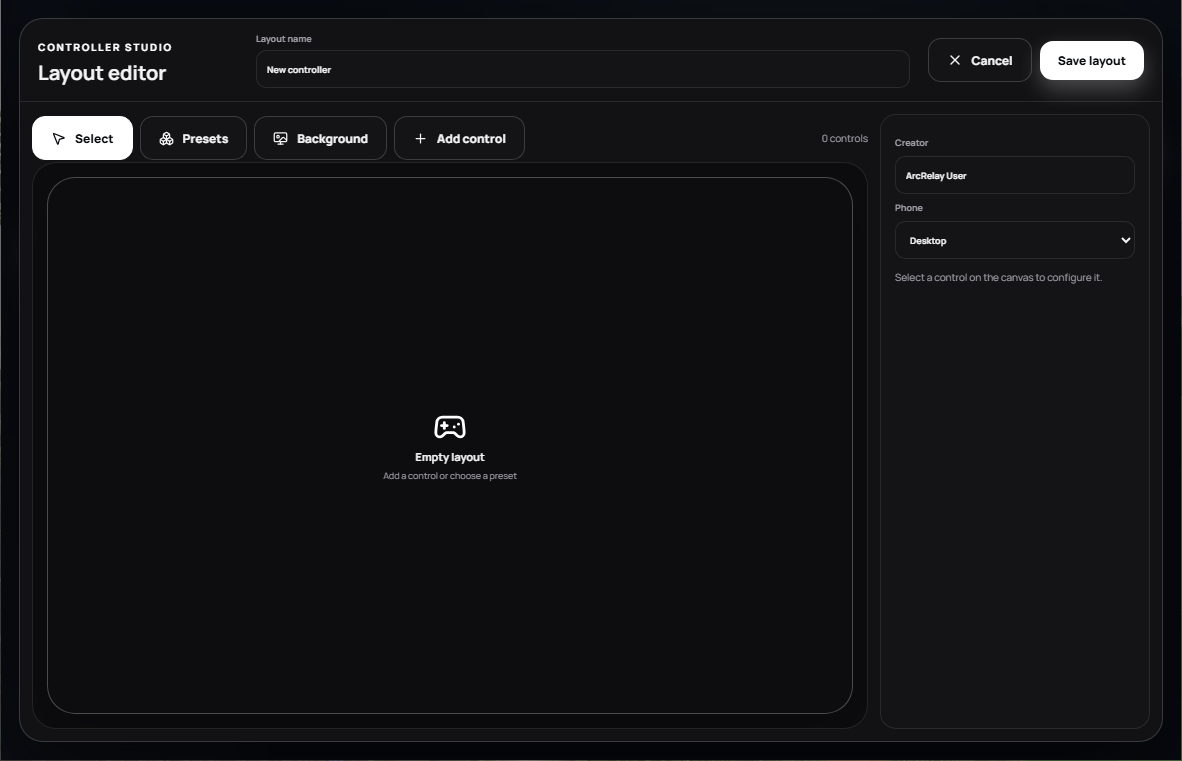
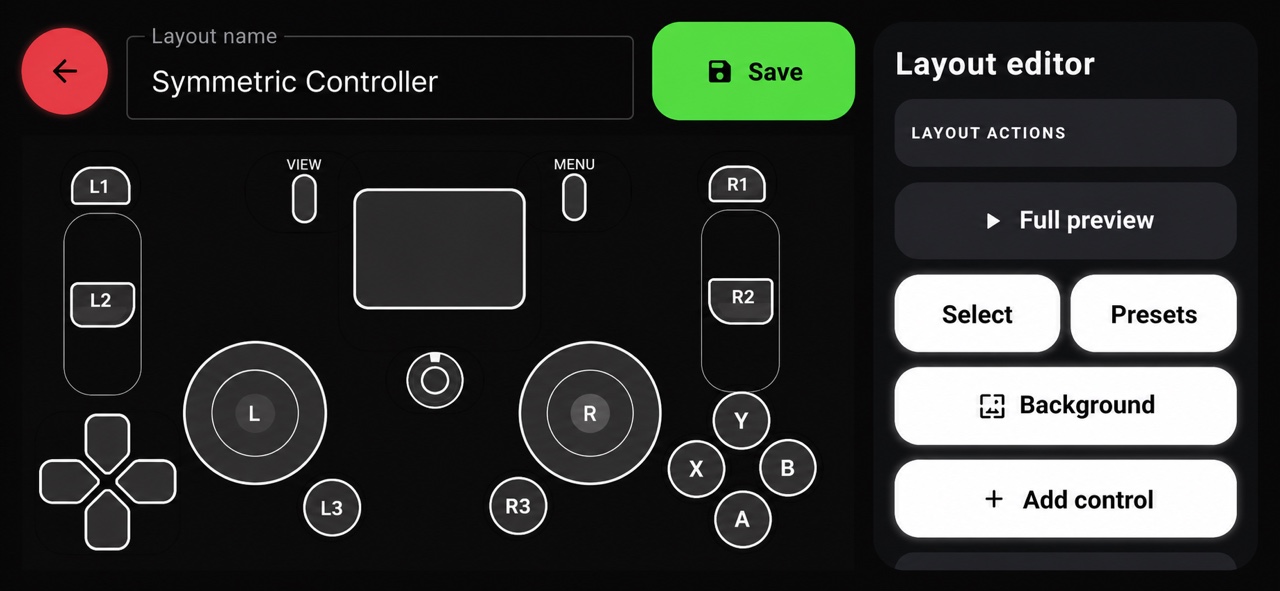
Start from an offset, symmetric or steering-wheel preset, then move, resize and rebind every control. Change artwork, backgrounds and grouping until the surface fits your hands and your game.
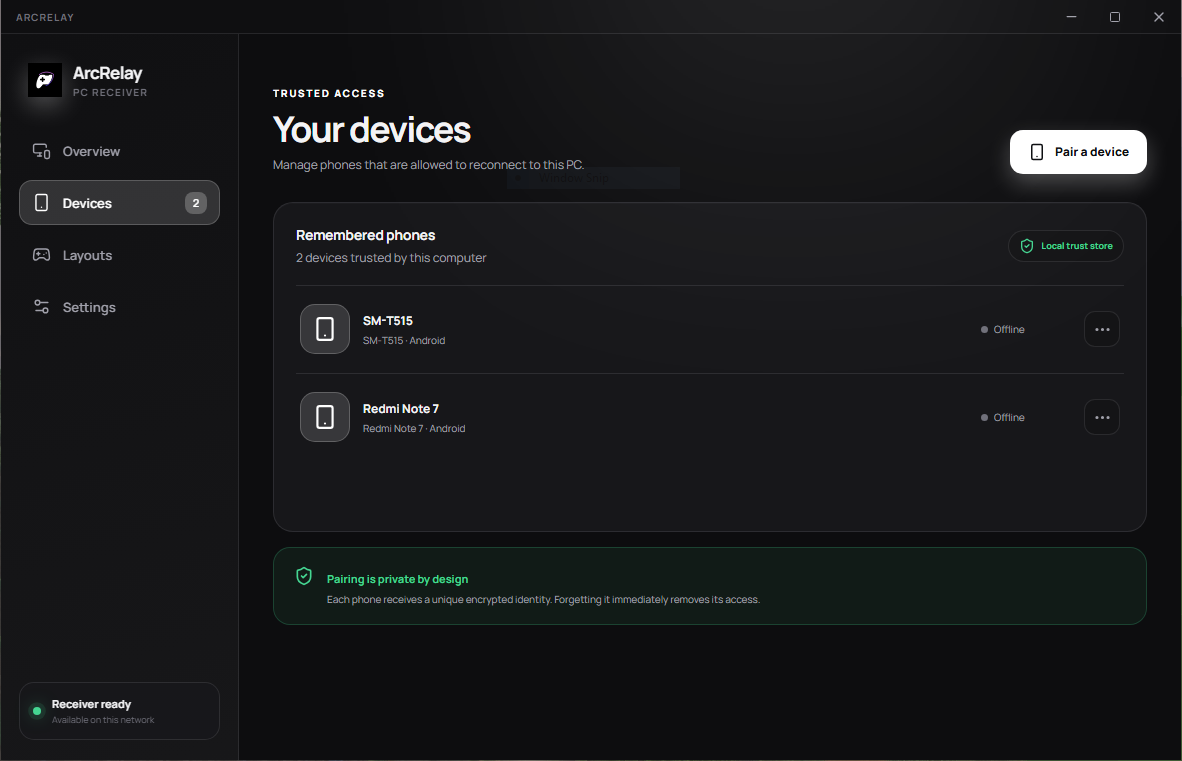
Your phone talks straight to your PC over the network you already trust. Pairing is explicit, remembered devices can be revoked at any time, and the receiver never silently installs system drivers.
The companion finds receivers on the same network on its own. Confirm with a QR scan or a six-digit code and you're in.
Offset, symmetric and steering-wheel presets, then customise controls, artwork, backgrounds, sizing, bindings and groups.
A low-overhead local transport with reconnect handling, so a dropped Wi-Fi blip doesn't end your session.
Layouts adapt to screen size and orientation, so a tablet gives you bigger targets without a redesign.
Manage paired devices and layouts straight from the Windows receiver. What you edit on one side shows up on the other.
Trusted local pairing, revocable remembered devices and certificate-pinned transport. Plus light, dark and system themes.
Each one is a real, editable layout — not a skin. Open it, move things around, save it as your own.
Sticks, D-pad, four face buttons, shoulders and analog triggers with a touchpad in the middle.
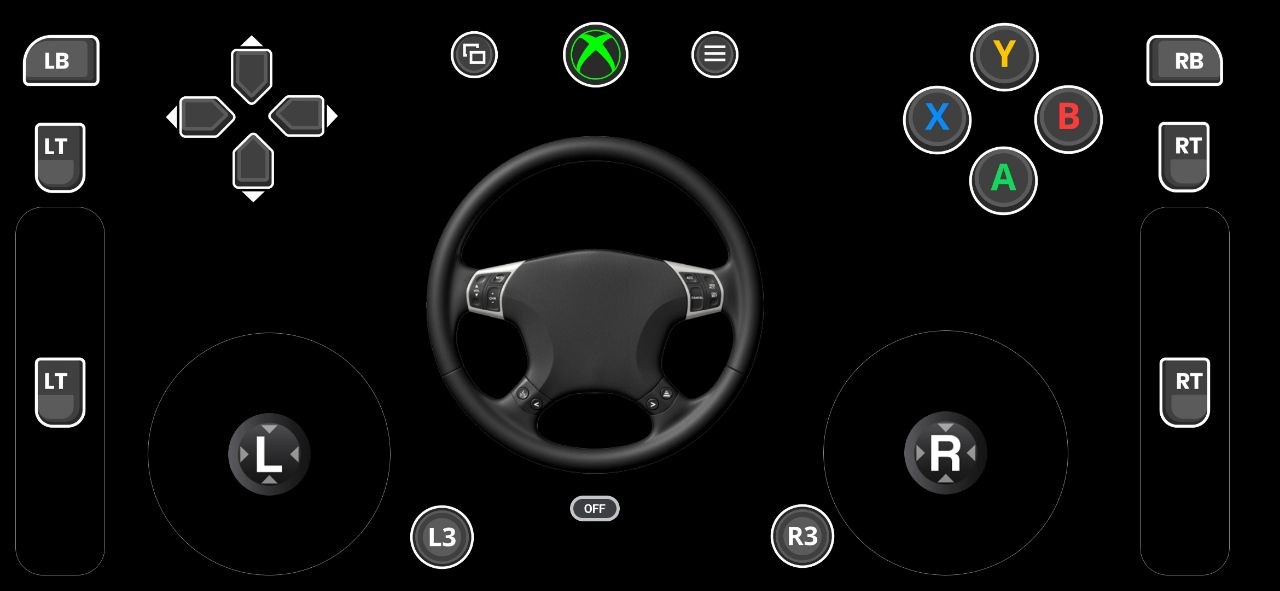
Steer with the phone's motion sensor, brake and accelerate on wide pedal pads sized for thumbs.
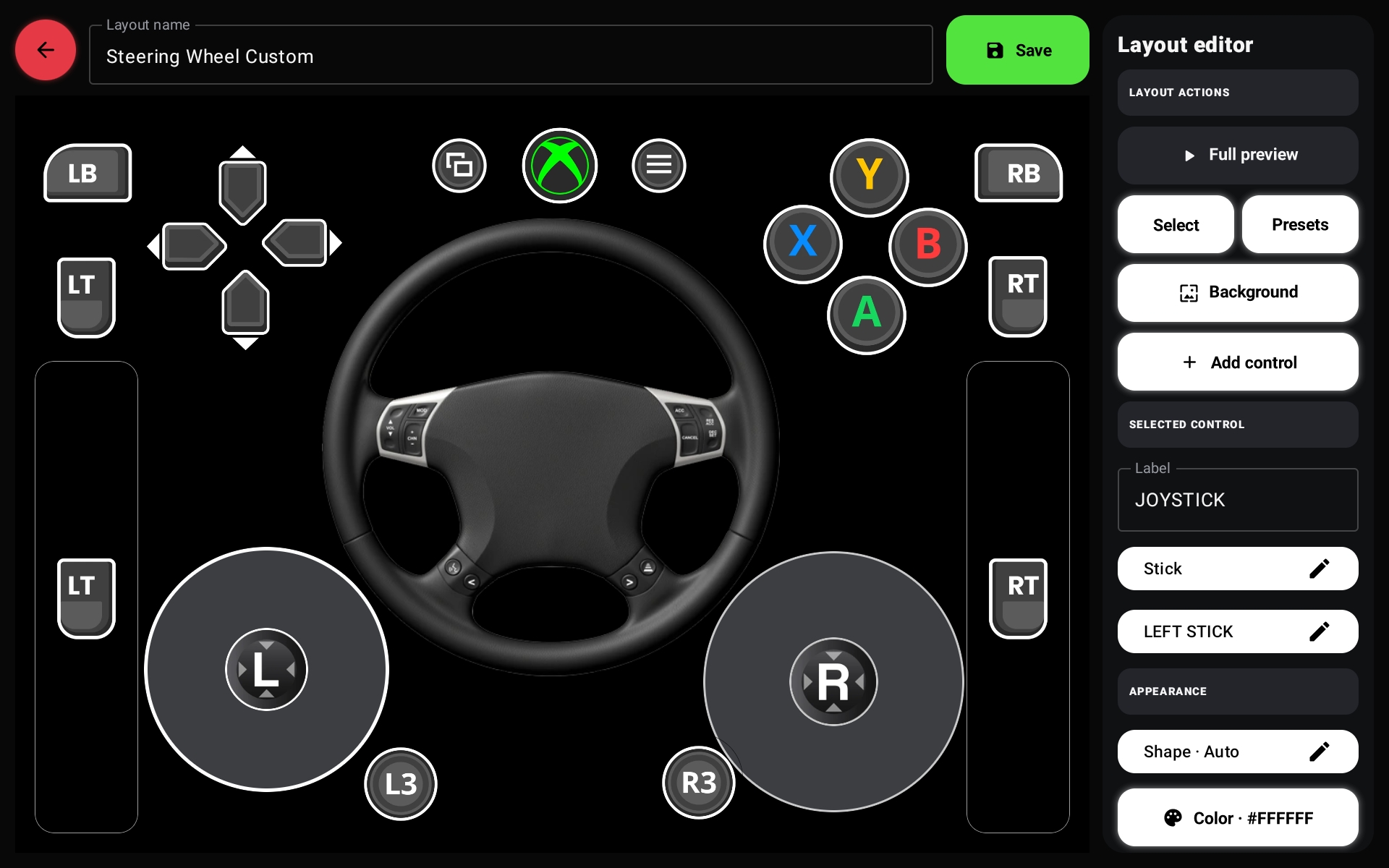
Use the larger editor view to place, resize and bind controls precisely, then sync the finished layout to your phone or tablet.
A layout can be a controller, a keyboard, a remote or a control panel. Mix any of these on one screen.
Living-room gamepad · steering wheel for driving games · compact keyboard, mouse and media remote · tablet accessibility controller with custom-sized controls · second-screen control panel · mouse touchpad
ArcRelay Receiver on Windows, ArcRelay Companion on Android.
The receiver shows a QR code and a six-digit code, and starts listening on your network.
On the phone, choose “Find computers”, then scan the QR or type the code.
Choose a preset or one of your own. Your PC now sees a real controller.
Direct device communication. Pairing is explicit, remembered devices can be revoked, and the receiver never silently installs system drivers.
You need both halves: the Windows receiver and the Android companion.
ArcRelay is in public beta. No account, no cloud, no telemetry.
Not in the stores yet — Android will ask you to allow the install.See what changed